


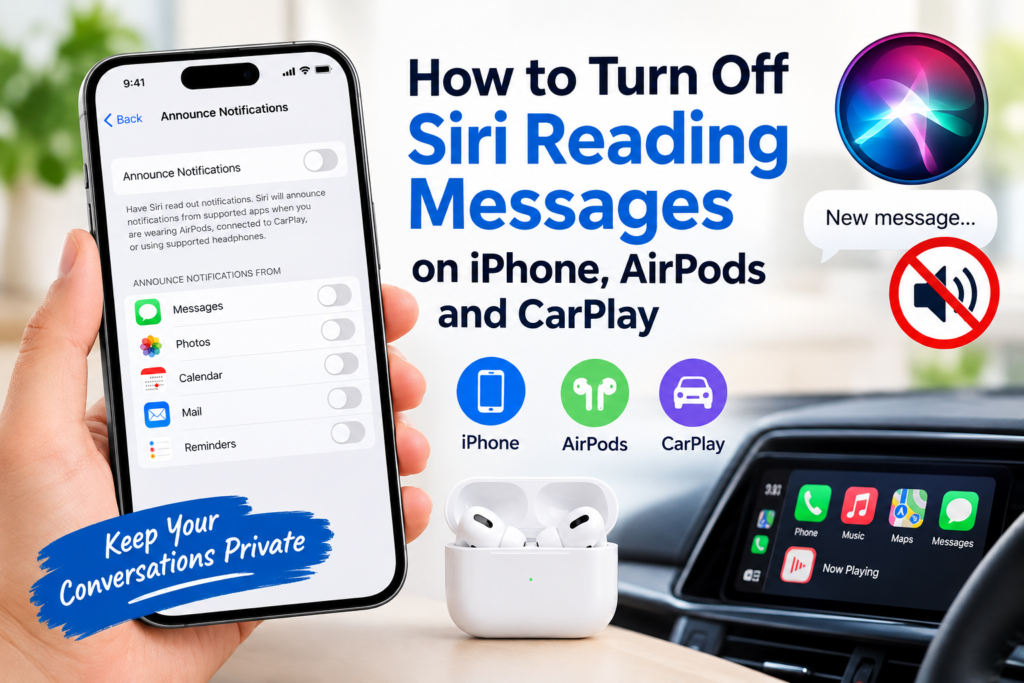
Have you ever been enjoying your favourite music, concentrating on an important task, or relaxing in a public setting when Siri unexpectedly begins announcing your private text messages? Although this hands-free feature can be convenient in certain situations, it may quickly become intrusive when you would rather keep your conversations confidential.
Fortunately, there is no need to disable Siri altogether to prevent this from happening. Apple’s notification controls allow you to silence spoken message announcements, adjust how Siri interacts with your AirPods, and manage notifications when your iPhone connects to a compatible vehicle.
In this guide, you will discover how to turn off Siri reading messages, prevent AirPods from announcing incoming texts, manage spoken notifications in CarPlay, and troubleshoot the problem if Siri continues speaking after you have changed your settings.
Why Does Siri Read Messages Aloud?
Apple includes a feature known as Announce Notifications, designed to let Siri speak incoming alerts through compatible headphones and supported vehicle systems. Depending on your configuration, these announcements may include text messages, reminders, and notifications from other applications.
For people who exercise, commute, walk outdoors, or drive, this functionality can be remarkably useful. Instead of reaching for an iPhone, you can listen to certain notifications and respond to supported messages using voice commands.
However, convenience does not always outweigh privacy. Imagine attending a virtual meeting, listening to a podcast, or sitting beside colleagues when Siri suddenly reads a personal message aloud. Such interruptions can be awkward, distracting, and entirely unwelcome.
The solution is straightforward: customise your notification preferences. You can silence announcements completely or restrict them to selected applications, depending on your needs and the controls available on your device.
How to Turn Off Siri Reading Messages on iPhone
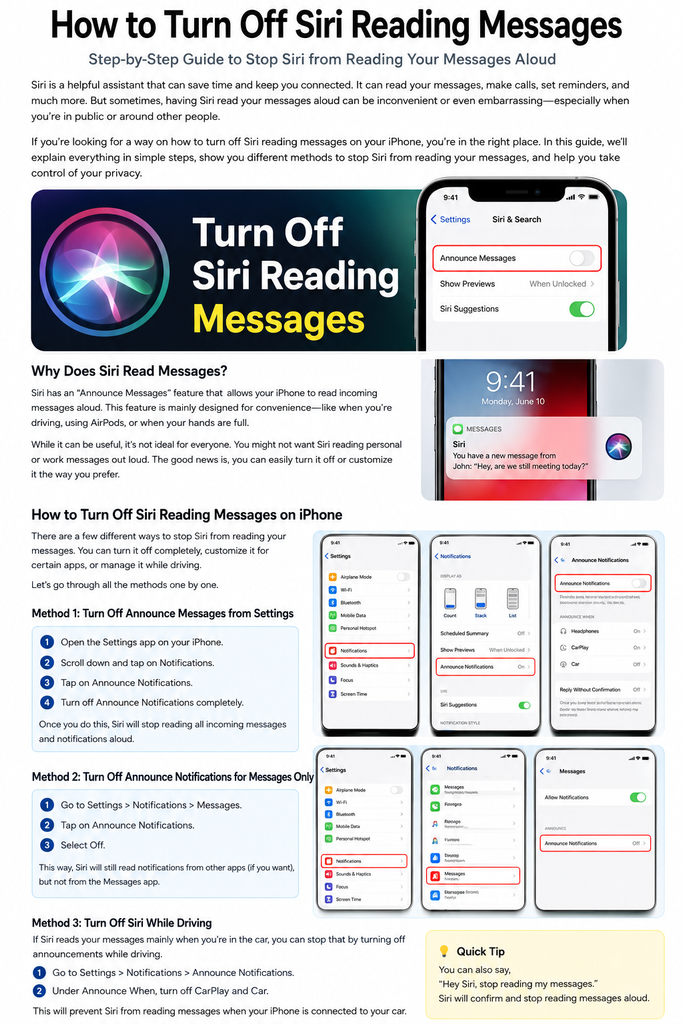
The quickest approach is to disable the Announce Notifications feature through your iPhone’s settings. This prevents Siri from speaking supported notifications controlled by that setting.
Follow these instructions:
- Open the Settings app on your iPhone.
- Select Notifications and locate Announce Notifications.
- Open the announcement settings.
- Switch off the main Announce Notifications option.
Depending on your iPhone model and iOS version, you may find the relevant controls under Settings > Siri or Settings > Apple Intelligence & Siri instead.
Once the feature is disabled, Siri should stop announcing supported notifications through the affected connections. Your ordinary message alerts can still appear on your screen, allowing you to read them whenever you choose.
It is worth distinguishing between disabling Siri and disabling spoken notifications. These are separate functions. You can continue asking Siri questions, setting alarms, placing calls, and creating reminders without having incoming messages read aloud.
If your only concern is the announcement of text messages, however, there is an even more selective solution.

How to Stop Siri from Reading Text Messages Only
Perhaps you appreciate hands-free announcements for reminders and other alerts but prefer to keep conversations private. In that situation, changing the Messages notification preferences is more suitable than disabling every announcement.
Here is how to proceed:
- Open Settings on your iPhone.
- Navigate to Notifications > Announce Notifications.
- Find Messages among the applications listed.
- Open its announcement preferences.
- Disable the option that permits Siri to announce Messages notifications.
On certain iOS versions, the menu names and available controls may differ slightly.
After adjusting this preference, Siri should no longer announce incoming text messages through the affected feature. Other applications may continue providing spoken notifications if their individual settings remain enabled.
This arrangement offers a practical compromise: you retain the convenience of a hands-free assistant without allowing private conversations to interrupt your day unexpectedly.
How to Turn Off Siri Reading Messages on AirPods
One frequent complaint among iPhone users is that Siri announces every incoming text while they are listening to music, watching a video, or enjoying a podcast through their AirPods.
If this happens to you, the relevant controls are available through your connected iPhone.
Method 1: Disable All Announced Notifications
If you would prefer complete silence from this feature, follow these steps:
- Connect your compatible AirPods to your iPhone.
- Open the Settings application.
- Select Notifications, followed by Announce Notifications.
- Turn off the main announcement setting.
This approach disables announcements controlled by the main setting rather than limiting the change to text messages alone.

Method 2: Silence Messages Announcements Only
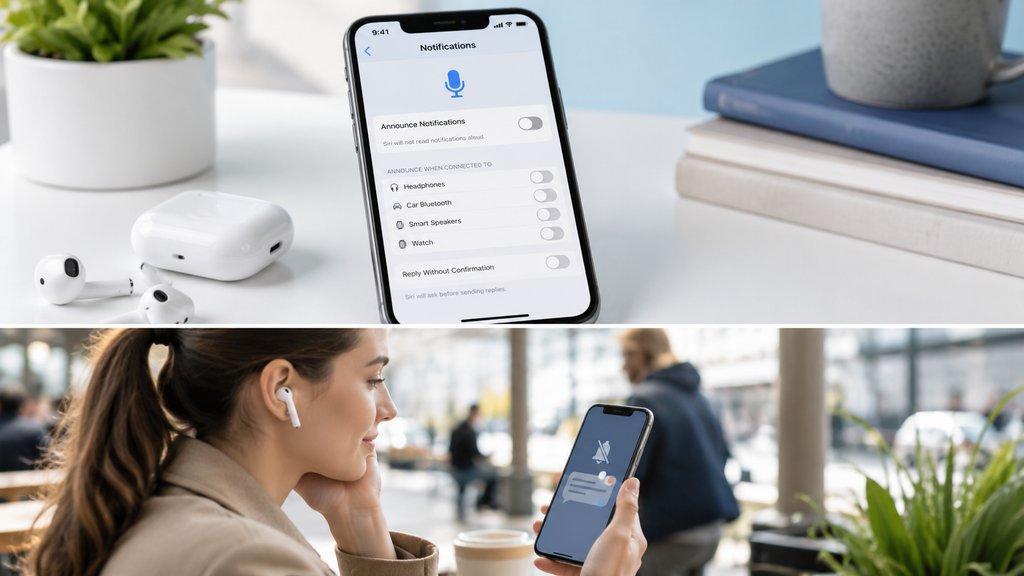
Would you rather hear selected alerts while keeping your texts private? Try this alternative:
- Open Settings on your iPhone.
- Navigate to Notifications > Announce Notifications.
- Select Messages.
- Disable announcements for Messages.
With this configuration, Siri should stop announcing text messages while other supported applications may retain their announcement privileges.
You can also examine any headphone-specific announcement controls available on your device, particularly if the behaviour changes when you connect or disconnect your headphones.
Bear in mind that these features require compatible headphones and supported software. The precise settings can vary according to your AirPods or Beats model and iOS version.
For further assistance, consult Apple’s official guide to Announce Notifications on AirPods and Beats.
How to Stop Siri from Reading Messages While Driving
Siri can announce incoming messages through supported CarPlay configurations and compatible vehicle connections. This can be helpful when driving, but not everyone wants spoken notifications interrupting a journey.
If you prefer to silence these announcements, examine the following settings:
- Open Settings on your iPhone.
- Look under Notifications > Announce Notifications, or locate the corresponding option in your Siri settings.
- Check whether your device provides separate controls for CarPlay or vehicle-connected announcements.
- Disable the relevant announcement option if it is available.
Some configurations offer separate preferences for headphones and vehicle connections. Where these controls are available, you can change the behaviour of one connection without necessarily affecting another.
You may also find relevant message-announcement preferences in your CarPlay settings, depending on your setup.
A crucial safety reminder: Never adjust your phone or vehicle settings while driving. Park somewhere safe before making any changes.
Can You Turn Off Siri Reading Messages Temporarily?
Yes, your available options may allow you to silence announcements for a limited period rather than disabling the feature permanently.
If your iPhone provides an Announce Notifications control in Control Centre, you may be able to manage the feature more conveniently.
To check:
- Open Control Centre on your iPhone.
- Look for the Announce Notifications control.
- Tap it to adjust the setting if the control is available.
The precise controls depend on your iOS version and device configuration. If you cannot locate the option, return to the Settings application and change the preference there.
Another possibility is to use a Focus mode, such as Do Not Disturb, during meetings, work sessions, or personal downtime. However, Focus and Announce Notifications serve different purposes. Do not assume that enabling Focus will automatically prevent every spoken announcement.
For occasional periods of quiet, these options can be more convenient than repeatedly changing multiple settings.
How to Stop Siri from Reading Messages Without Turning Siri Off
Understanding the distinction between Siri and Announce Notifications makes the solution much clearer.
Siri is Apple’s voice assistant. It helps you answer questions, make calls, set alarms, manage reminders, and perform other tasks using your voice.
Announce Notifications is a separate capability that allows Siri to speak supported incoming alerts through compatible devices.
Turning Siri off entirely may remove access to useful functions that you still rely on every day. Fortunately, that drastic step is usually unnecessary.
Instead, leave Siri enabled and switch off Announce Notifications, or disable announcements specifically for the Messages application.
This approach preserves your preferred voice-assistant features while giving you greater control over when and where incoming notifications are spoken aloud.
For most users, adjusting the announcement settings is the simplest and most sensible solution.
What to Do If Siri Still Reads Messages After You Turn It Off
Occasionally, Siri may continue announcing messages even after you believe you have disabled the relevant feature. Before assuming that something is seriously wrong, work through these troubleshooting steps.
1. Recheck the Announce Notifications Setting
Return to Settings and verify that the main Announce Notifications control is disabled. If you intended to silence Messages alone, confirm that you changed the setting for the correct application.
A different notification preference may not affect spoken announcements.
2. Examine Your AirPods or Beats Settings
If the issue occurs exclusively when using headphones, reconnect them to your iPhone and revisit the announcement preferences.
Check that you have modified the control responsible for spoken notifications rather than an unrelated audio or alert setting.
3. Review CarPlay Preferences
Does Siri announce messages only when you enter your vehicle? If so, inspect the available CarPlay-related settings.
Your headphone and vehicle announcement preferences may be controlled separately, depending on your configuration.
4. Restart Your iPhone
A simple restart can sometimes resolve temporary software glitches.
Restart your device, check the relevant announcement settings again, and test whether newly received messages are still spoken aloud.
5. Install Available iOS Updates
If the problem persists, check whether Apple has released a software update for your device.
Open Settings > General > Software Update and follow the available instructions if an update is offered.
If none of these measures resolves the issue, visit Apple Support for guidance tailored to your iPhone model, software version, and connected accessories.
Conclusion
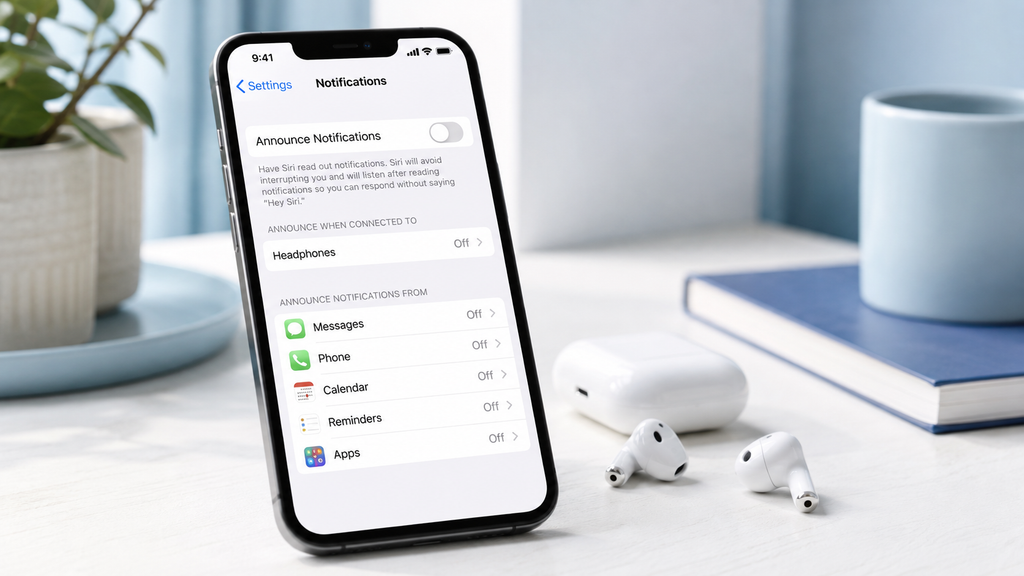
Learning how to turn off Siri reading messages does not require complicated adjustments or disabling your voice assistant altogether. In most cases, the solution involves opening Settings > Notifications > Announce Notifications and switching off the feature, although the precise menu location can vary across iOS versions.
If you want to silence text messages alone, adjust the announcement preferences for Messages instead. AirPods users should examine their headphone-related controls, while those using CarPlay can review the available vehicle announcement settings.
There is no need to sacrifice Siri’s useful everyday functions simply to protect your privacy. A small adjustment can help you enjoy music, concentrate on work, travel comfortably, and use your iPhone without unexpected messages being broadcast aloud.
Frequently Asked Questions (FAQs)
1. How do I stop Siri from reading my text messages?
Open Settings on your iPhone and navigate to Notifications > Announce Notifications. Turn off the main feature to silence announcements controlled by that setting. Alternatively, select Messages and disable its announcement option if you want to silence texts alone.
2. How do I stop Siri from reading messages on AirPods?
Connect your compatible AirPods to your iPhone, open Settings > Notifications > Announce Notifications, and disable the feature. If you still want announcements from other supported applications, switch off Messages announcements individually instead.
3. Can I stop Siri from reading messages without turning Siri off?
Yes. You can keep Siri enabled while disabling Announce Notifications or restricting announcements for Messages. You can then continue using Siri for calls, alarms, reminders, and other supported tasks.
4. Why does Siri keep reading messages after I turn off notifications?
First, confirm that you disabled the correct Announce Notifications control. If the problem occurs only through AirPods or CarPlay, review the settings associated with that connection. Restarting your iPhone and installing available software updates may also help.
5. Will turning off Siri message announcements stop text notifications completely?
No. Disabling Announce Notifications generally stops supported notifications from being spoken aloud; it does not automatically prevent text messages from arriving. Your messages can still appear on your iPhone according to your normal notification settings.